Export a project
Export creates copies of project media. Originals remain in their library locations.
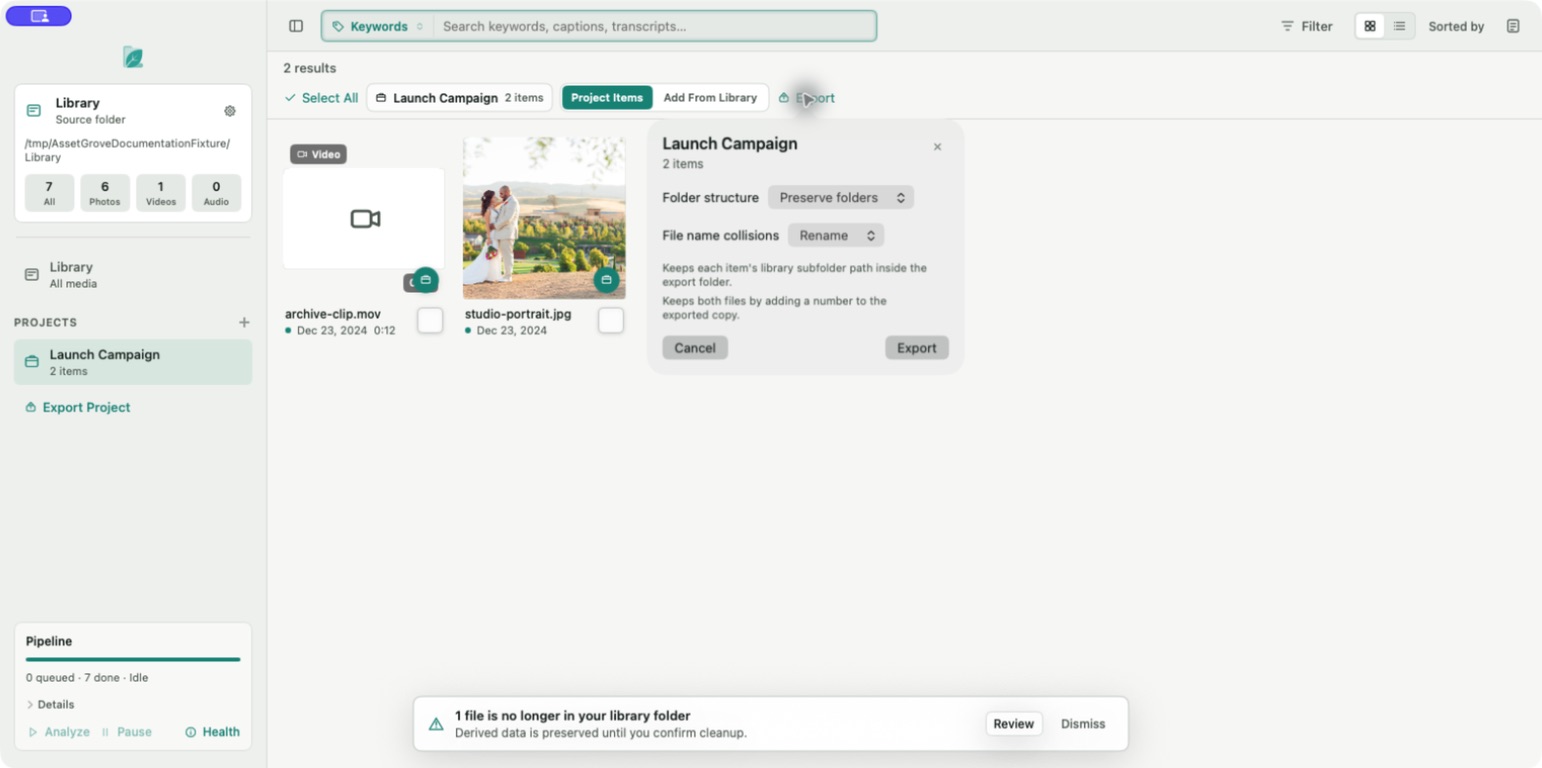
- Open the project you want to deliver.
- Select Export Project from the sidebar or browser.
- Choose or confirm the destination folder.
- Select the folder structure and filename-collision policy.
- Confirm the export.
- Keep source drives and the destination connected until the report appears.
The export report separates copied, skipped, failed, and cancelled items. Review it before handing off the destination.
:::info Originals are untouched Asset Grove reads each source and writes a copy to the destination. Export does not move, rename, or edit the library original. :::
If a source is missing or its drive is offline, restore access before retrying. For collision behavior, see Export structure and filename collisions.